How does BYOB built-in version control work for non-developers? #
BYOB version control saves named project snapshots plus background auto-saves, and restore adds a new entry instead of deleting history. Scope: SvelteKit projects with manual saves, auto recovery points, and per-deploy snapshots; constraint: no branches or merges — restore then redeploy to recover. The loop is 3 steps with prereq of a labeled save before risky edits: 1) save with description, 2) preview or restore from History, 3) redeploy the known-good snapshot.
Video games figured this out decades ago. Before the boss fight, you hit the save point. If the fight goes badly, you reload. You never lose the save itself, and you never have to replay the whole game.
BYOB version control is save points for your website. Every manual save creates a named snapshot of the entire project. Auto-saves run quietly between your saves as backup. Restoring an old snapshot never deletes anything, it just adds a new entry that says you went back. No terminal. No branches. No merge conflicts asking you to reconcile two versions of the same file at midnight.
Developers will recognize the ideas underneath. Git tracks project history as snapshots called commits, organized into branches, as stated in the GitHub guide to Git (https://docs.github.com/en/get-started/using-git/about-git). BYOB keeps the snapshot idea and drops the machinery around it. Same safety, fewer concepts.
Try it: Deploy Checklist — so restores stay safe before you ship changes.
Why version control matters for AI builders? #
When you build with AI, iterations happen fast. You prompt "add a contact form," see the result, then prompt "actually make it a modal instead." Five iterations later, the modal has animations and validation you never asked for.
Good version control lets you return to version 3, where the modal worked perfectly. Without it, you are stuck describing the undo to the AI and hoping it reconstructs what you had. That conversation goes badly more often than anyone admits.
There is a deeper point too. Version control is what makes experimentation cheap. When every experiment is reversible in one click, you try bolder things. You ask the AI for the ambitious version first instead of the safe one. The safety net protects work and changes what you attempt.
And there is a third benefit nobody mentions until handoff day. A described timeline is project documentation written as a side effect of working. When a client asks what changed last month, or a new collaborator needs the story of the project, the snapshot list answers. No status doc to maintain. The history you already made does the talking.
How does the save system work? #
Every BYOB project starts with an initial snapshot: "Project created." From there, you control the timeline by clicking Save whenever something meaningful changes.
The save flow #
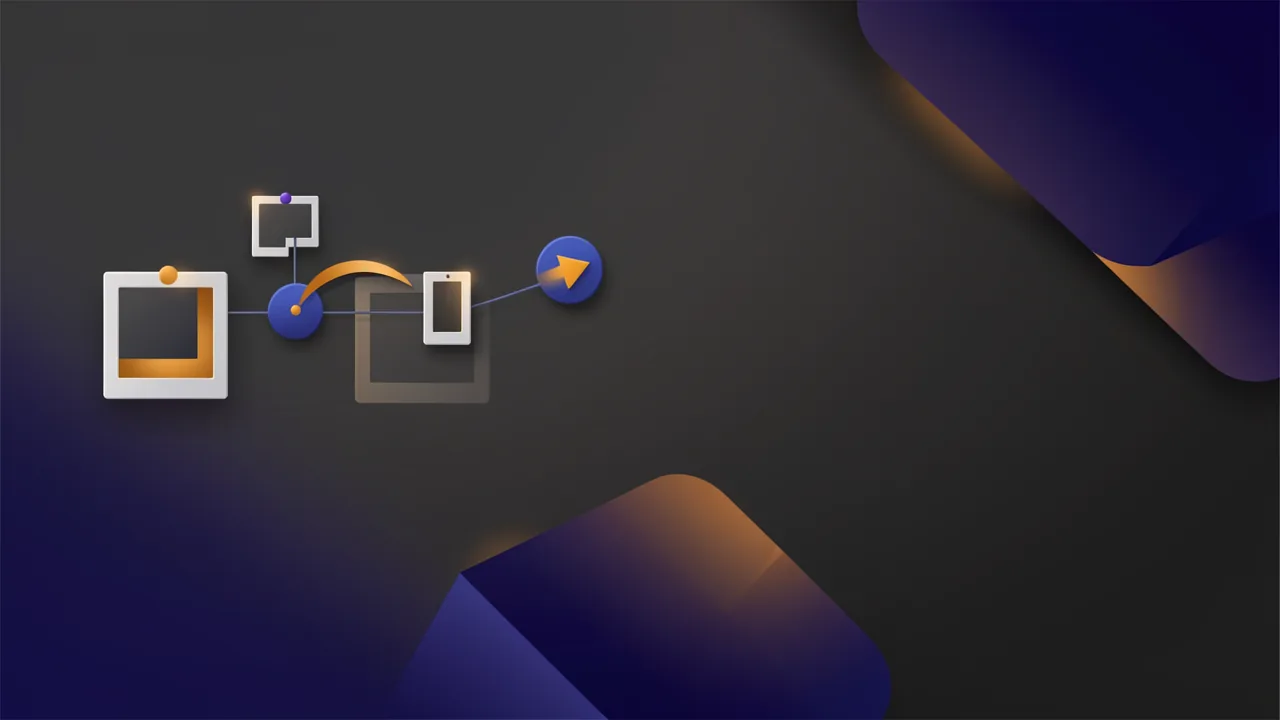
The steps are plain. You make changes, through AI generation, manual edits, or new assets. You click Save. BYOB asks what changed. You write something your future self will understand, like "Added hero section with gradient background." BYOB freezes the full project state into an immutable snapshot.
Each snapshot holds all code files, all uploaded images and assets, the database schema if you have created tables, and environment variables plus configuration. Immutable means exactly that. Past snapshots cannot be edited, only viewed or restored. History is append-only, which is the property that makes every later guarantee possible.
Snapshot descriptions are mandatory, and that friction is intentional. A timeline of "Update," "Changes," "Fix" is archaeology without labels. Forcing one sentence of description turns the timeline into documentation you get for free.
Auto-save vs manual save #
BYOB runs two save systems in parallel, and they serve different masters.
Auto-save runs in the background every few minutes while you work. It creates recovery points without interrupting flow, marked "(auto)" in history. These are safety nets, not documentation. If the browser crashes or the connection drops, the auto-save is what stands between you and lost work.
Manual save is the one you trigger. It requires a description and appears prominently in history. These are your documented checkpoints, the versions you chose to remember.
The working rhythm most builders land on: generate features with AI, test them, and manually save the moment something works well. Never accumulate ten changes before saving. Auto-saves catch whatever falls between your saves. Manual saves say what mattered.
How do you browse version history? #
Click History to see every snapshot in chronological order, each with its description, timestamp, and author:
Hero section with gradient background
  Feb 17, 2026 at 2:34 PM
  John Doe

Added contact form modal
  Feb 17, 2026 at 1:15 PM
  John Doe

(auto-save)
  Feb 17, 2026 at 12:58 PM

Initial homepage layout
  Feb 17, 2026 at 12:45 PM
  John Doe
Each entry offers three moves. Preview opens the project as it looked at that point, read-only, so you can inspect without risk. Restore rolls the project back to that exact state, reversibly. Compare shows what changed between that snapshot and now, file by file.
History never shrinks. Restoring to an old version keeps every newer snapshot in place. You can move backward and forward through the timeline freely, because backward moves are recorded as new forward entries.
How do you restore a previous version? #
When AI generates code that breaks the site, or when yesterday's version was simply better, restoration is one click.
Restore process #
Open History, find the snapshot, preview to confirm it is the right one, click Restore. BYOB creates a new snapshot labeled "Restored to: [original description]" and your project matches that old state exactly.
The timeline after a restore tells the story:
Restored to: Hero section with gradient background  <- you are here
  Feb 17, 2026 at 4:10 PM

Broken: attempted to add animations          <- still in history
  Feb 17, 2026 at 3:50 PM

Hero section with gradient background         <- restore point
  Feb 17, 2026 at 2:34 PM
Nothing is lost. If the restore was a mistake, restore again to any other point, including the "broken" version you just left. Mistakes in version control cost seconds, which is precisely why the system earns trust.
Deployment snapshots #
Every publish creates an automatic deployment snapshot marked with a deploy icon and linked to the live URL at that moment. These are your safety anchors, the versions you know worked in front of real visitors.
If a deploy ships something broken, and it happens to everyone eventually, recovery is three moves. Open History, find the last working deployment snapshot, restore it, deploy again. The live site returns to working state in under a minute.
This pattern is standard practice on serious hosting platforms. Cloudflare Pages, for example, treats any successful production deployment as a valid rollback target and switches production traffic instantly on rollback, as stated in the Cloudflare Pages rollbacks docs (https://developers.cloudflare.com/pages/configuration/rollbacks/). BYOB brings the same idea inside the builder, so rollback does not require a separate dashboard or a deploy pipeline you maintain yourself.
How this differs from Git? #
Real Git is a distributed version control system where every developer holds a full copy of the project and its history, with branches for parallel lines of work, as stated in the Pro Git book (https://git-scm.com/book/en/v2/Getting-Started-What-is-Git%3F). The standard collaboration dance on GitHub runs through branches, commits, pull requests, review, and merge, as stated in the GitHub flow guide (https://docs.github.com/en/get-started/using-github/github-flow). That machinery serves teams well. It also confronts a solo non-developer with staging areas, remotes, rebases, and conflict markers.
BYOB keeps the commit idea and removes the rest. Saving replaces the add plus commit sequence. Linear history replaces branches, because one editor means parallel lines of work rarely exist. Restore replaces revert plus reset, with no command flags to memorize. Cloud storage replaces the local versus remote distinction entirely. There is nothing to push because there is nowhere else for the work to live.
The tradeoff is real and worth stating plainly. Git can do things BYOB cannot: parallel feature branches, cherry-picked commits, bisecting history to find which change introduced a bug. Solo builders and small teams almost never need those operations. They need undo, documentation, and rollback. BYOB optimizes for the common case without apology.
Multi-user projects and locking #
When you share a project, version control prevents conflicts through a simple rule: one editor at a time. Opening a project for editing locks it until you close it or your session times out. Collaborators see who holds the lock and can view but not edit.
This prevents an entire class of problems before it starts. No two people editing the same file simultaneously. No silent overwrites. No three-way merges. The cost is equally simple: real-time Google Docs style co-editing is not possible. For teams that need simultaneous editing, that limitation matters and should factor into your choice. For everyone else, the lock is invisible and the conflicts it prevents never happen.
Project history is shared with all collaborators, so anyone with access can browse snapshots and restore. Locks expire after inactivity, so an abandoned session does not hold the project hostage.
Sessions, timeouts, and abandoned locks #
Locks raise an immediate question. What happens when someone opens a project, edits for an hour, then closes the laptop and leaves for the weekend?
Sessions expire after a period of inactivity, releasing the lock automatically. Collaborators waiting on access get in without filing a ticket or messaging anyone. The departing editor loses nothing, because auto-save kept writing recovery points throughout the session and the last manual save preserved the intentional state.
This is the unglamorous machinery that makes shared projects workable. No lock dashboard to administer, no admin override to request, no stale session holding work hostage. The system assumes people are forgetful and plans accordingly.
One habit still helps. When you finish a work session, save manually with a description of where you stopped, then close the project. "WIP: pricing page draft, testimonials still placeholder" gives the next person a starting point no automation can infer. Locks handle access. Descriptions handle continuity.
What happens to snapshots over time? #
Snapshots never expire or delete automatically. History persists for active projects at no additional cost.
Each snapshot stores full project state rather than diffs, which trades storage efficiency for restore simplicity. For most projects this amounts to a few megabytes per snapshot, a non-issue in practice. Very large projects with hundreds of snapshots may eventually see old snapshots archived, still accessible but slower to load, with advance notice before it affects anyone.
The compare view deserves more love #
Preview answers "what did it look like." Compare answers "what exactly changed," and that second question solves more mysteries.
Open Compare on any snapshot and you get three groups. Files added since, shown in green. Files deleted, shown in red. Files modified, with line-by-line diffs in yellow. This is the same information Git developers get from diff commands, without learning diff commands.
The debugging pattern this enables is underrated. Something breaks after the "Added pricing page" save. Compare that snapshot against its predecessor. The pricing page is there as expected, but the header component changed too, something you never asked for. Now you know the bug lives in the header, and your next prompt can say exactly that: add the pricing page without modifying the header. Compare turns vague breakage into a precise sentence, and precise sentences are what AI builders run on.
Use Compare proactively as well. Before restoring, compare the broken present against the good past to confirm the restore target contains what you think. Thirty seconds of reading prevents restoring the wrong version and wondering why nothing improved.
Save descriptions that survive #
Mandatory descriptions only help if they say something. Teams that write good ones follow a few habits.
Lead with the verb and the object. "Added mobile-responsive navigation menu" beats "Nav stuff." Say what a stranger needs: which area changed and what it does now. Reference the reason when it is not obvious: "Reverted hero to gradient per client feedback" explains itself in a way "Hero update" never will.
Keep one idea per save. If the description needs the word "and" twice, that was two saves wearing a trench coat. Smaller saves make Compare output readable and restores precise. You want to roll back the footer experiment without losing the contact form fix from the same afternoon.
Mark AI versus human changes when it matters. "AI: generated testimonials carousel" versus "Manual: tightened carousel spacing" tells future you who to blame and who to ask for the sequel. When the AI produces something odd, the label speeds up the retry because you know which prompts to revisit.
The table below names each save type, when it appears, and how to use it.
| Save type | When it is created | How to use it |
|---|---|---|
| Manual save | You name a checkpoint | Save before bold edits |
| Auto save | The editor saves quietly between edits | Treat as a safety net |
| Deploy snapshot | Each publish marks the live state | Roll back to the last live mark |
| Restore point | You restore an older state | Restoring writes a new entry |
| Compare view | You review two points in time | Read diffs before you revert |
Best practices that actually help #
Save the moment something works. When AI generates a feature that behaves, save immediately with a clear description. Do not batch ten changes into one save and hope you remember what each did.
Write descriptions for strangers. "Added mobile-responsive navigation menu" locates itself in history six months from now. "Update" does not. The thirty seconds of writing pays back the first time you hunt for a version.
Save before major surgery. About to ask the AI to refactor the entire homepage? Save first. If the refactor fails, restoration is instant. This single habit removes most AI building anxiety.
Treat deploys as milestones. Each deployment snapshot marks a known working version. When experiments go wrong, these anchors are where you return.
Compare before you restore. When something breaks, comparing the suspect snapshot against its predecessor often reveals that the AI modified a file you never mentioned, like the header component alongside your pricing page. Knowing the true cause lets you retry with a tighter prompt, such as "add the pricing page without modifying the header," instead of restoring blindly.
Version control and AI iteration #
AI generation plus good version control produces a workflow that looks like this. Establish a baseline and save it with a name like "Working baseline before adding blog." Ask the AI to add the blog feature. Test. If the blog works but breaks navigation, restore to baseline in one click. Refine the prompt with the new constraint. Succeed, then save under "Added blog feature successfully."
Without version control, the broken step requires describing everything wrong to the AI and hoping the fix lands. With version control, the broken step costs one click and a better sentence. That gap compounds across every feature you ever build.
Anatomy of a snapshot #
It helps to know what "full project state" concretely contains, because that determines what restore can and cannot fix.
Code files come first: every route, component, style sheet, and config file exactly as it stood. Uploaded images and assets ride along, so a restore never orphans a page that references a deleted file. Database schema travels too, meaning table structures roll back with the code that used them. Environment variables and configuration complete the picture, so API keys and settings match the restored code.
What is missing is equally important. Data rows are not snapshotted. If your users created records after the snapshot, restoring the schema does not delete their rows, and restoring cannot bring back rows deleted since. Snapshots are version control, not backups. Schema travels through time. Data lives in the present.
This split surprises people exactly once. After that it feels obvious, because it mirrors how professional teams think: migrations are versioned in Git, production data is backed up separately, and never the twain shall meet.
From BYOB snapshots to Git #
Sooner or later, someone asks the graduation question. The project is growing, a developer joins, and the team wants real Git history. What then?
You can export the project's current code at any time. That export is standard structured code a developer can commit into a fresh Git repository in minutes. What does not transfer automatically is the snapshot timeline itself. Converting snapshot history into Git commits is manual work: export key snapshots, commit them in order with their descriptions as commit messages, and you have a readable history.
In practice, most teams do not convert the full timeline. They export the current state as the initial commit and keep BYOB history readable for archaeology. The old snapshots remain accessible in the project for reference. This is slightly inelegant and completely fine. History serves the future, and the future mostly needs the present plus a few landmarks.
The honest graduation rule: move to Git when you need parallel branches, code review workflows, or CI pipelines that BYOB does not provide. Until two developers need to change the same files simultaneously, snapshots cover you. GitHub flow exists for the day that arrives, with its branch, pull request, review, and merge rhythm documented step by step, as stated in the GitHub flow guide (https://docs.github.com/en/get-started/using-github/github-flow). Learn it when you need it, not before.
What we learned building this? #
Every manual save writes a snapshot from the editor workspace, with history kept linear behind the scenes. Restore never deletes; it appends a new entry pointing at older state. Autosave and manual commits work as separate layers, which matches the table above.
Who this is for (and who should skip it)? #
This guide helps non developers who iterate fast and fear breaking a working site. If you edit, prompt, and publish yourself, snapshots give you a save point before every boss fight.
Skip the details if a developer already manages your code in Git elsewhere. The mental model still transfers, but your source of truth stays in the repo, not here.
- Best for beginners saving restore points before big prompt changes.
- Best for non-technical founders iterating fast without fear of breaks.
- Best for small teams reviewing history before republishing.
Frequently asked questions #
Can old snapshots be deleted? #
Not currently. Snapshots persist to prevent accidental data loss, and storage is included in the platform cost. Deletion sounds tidy until someone deletes the one version the client approved.
What if collaborators disagree about a restore? #
Talk first, restore second. Restores are reversible, so a disputed restore costs nothing technically, but project history is shared and every restore is visible. A quick message before rolling back someone else's work prevents most friction.
Can version history be exported? #
Current code exports freely. The timeline itself stays in BYOB. If you need Git history elsewhere, convert landmark snapshots to commits manually as described above.
Does version control cover database changes? #
Schema yes, data no. Snapshots include table structures and roll those back on restore. Rows are untouched. Plan backups separately for anything users created.
How does this compare to GitHub? #
GitHub hosts Git repositories: distributed history, branches, pull requests, merges, and a universe of integrations. BYOB offers linear snapshots with a visual interface and one-click restore. GitHub serves teams with process. BYOB serves builders with momentum. The concepts rhyme, as Git itself is built from commits, branches, and merges over a full local copy of history, as stated in the GitHub guide to Git (https://docs.github.com/en/get-started/using-git/about-git).
What breaks this system? #
Two things. Saving without describing, which turns history into noise. And never saving at all, which turns auto-saves into your only timeline. Both are habits, and habits are fixable today.
Build without fear of breaking things. Try BYOB version control ->