Browser Visual Testing
One of the biggest challenges in AI code generation is that AI typically only sees text. It doesn't know if the CSS it just wrote actually looks good on a screen, or if a button is accidentally covering up some important text.
BYOB solves this massive hurdle with Browser Visual Testing.
How it works #
Using the dedicated BYOB Chromium Extension, the AI is granted secure "eyes" into your Live Preview environment.
When you notice a visual bug that is hard to describe with words (e.g., "The layout is completely messed up on the pricing page"), the AI can launch a visual testing session.
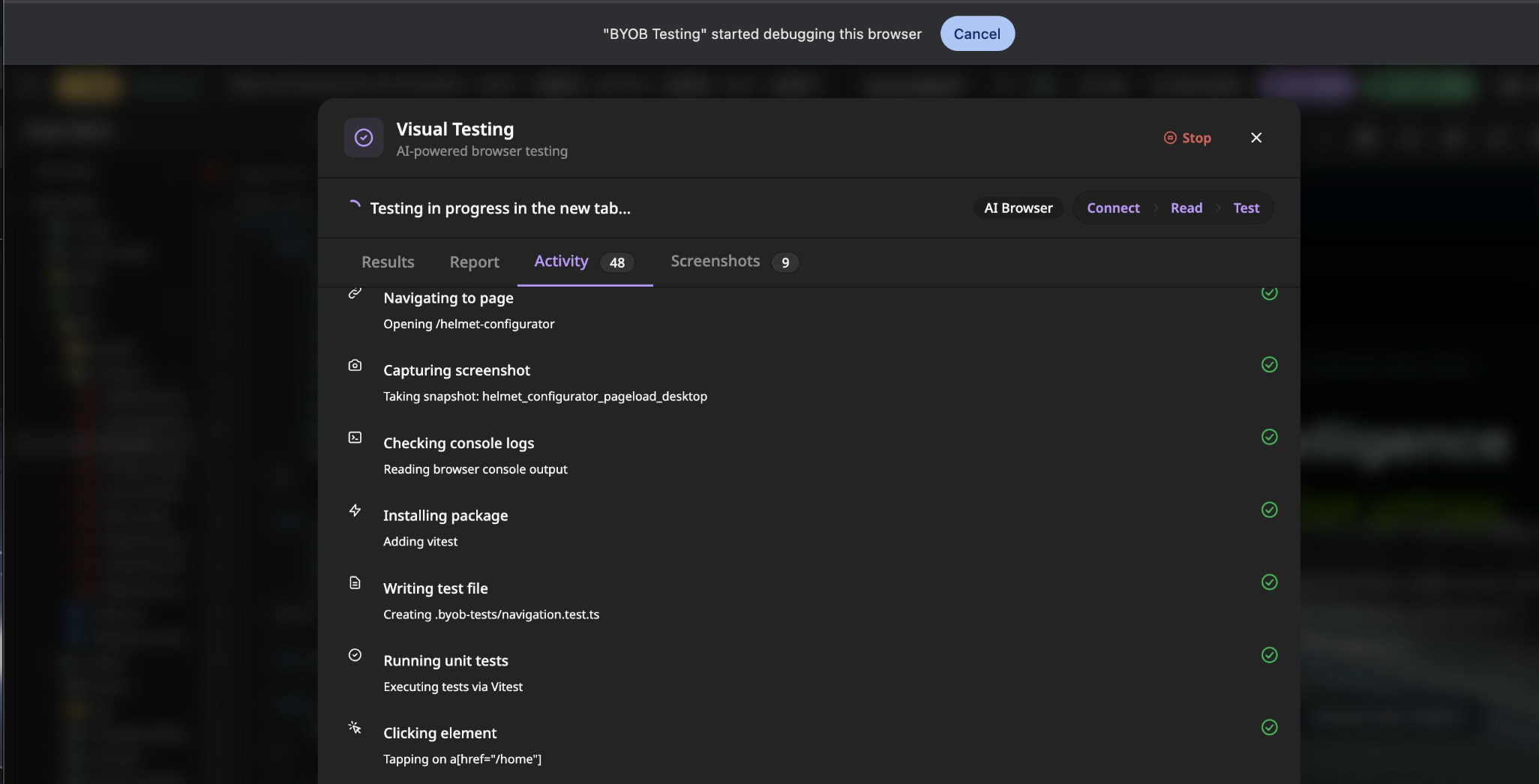
During this session, the AI will:
- Take actual screenshots of your running application.
- Analyze the rendered DOM (Document Object Model) and computed CSS styles.
- Visually identify overlaps, contrast issues, or broken responsive layouts.
- Write precise CSS adjustments to fix the visual bug.
Setting it up #
To enable this superpower, you must have the BYOB Testing Extension installed in your Chromium-based browser (Chrome, Edge, Brave, arc).
Once installed and enabled, it runs silently in the background, only activating when the AI explicitly requests visual context of your preview window to help you debug a UI issue.