Preflight Planning (Guided Review)
Jumping straight into writing code for a complex application can lead to messy architecture. To prevent this, BYOB introduces Guided Review—an interactive project wizard that ensures you and the AI are completely aligned on the architecture, design, and data structure before a single line of code is generated.
The Project Wizard #
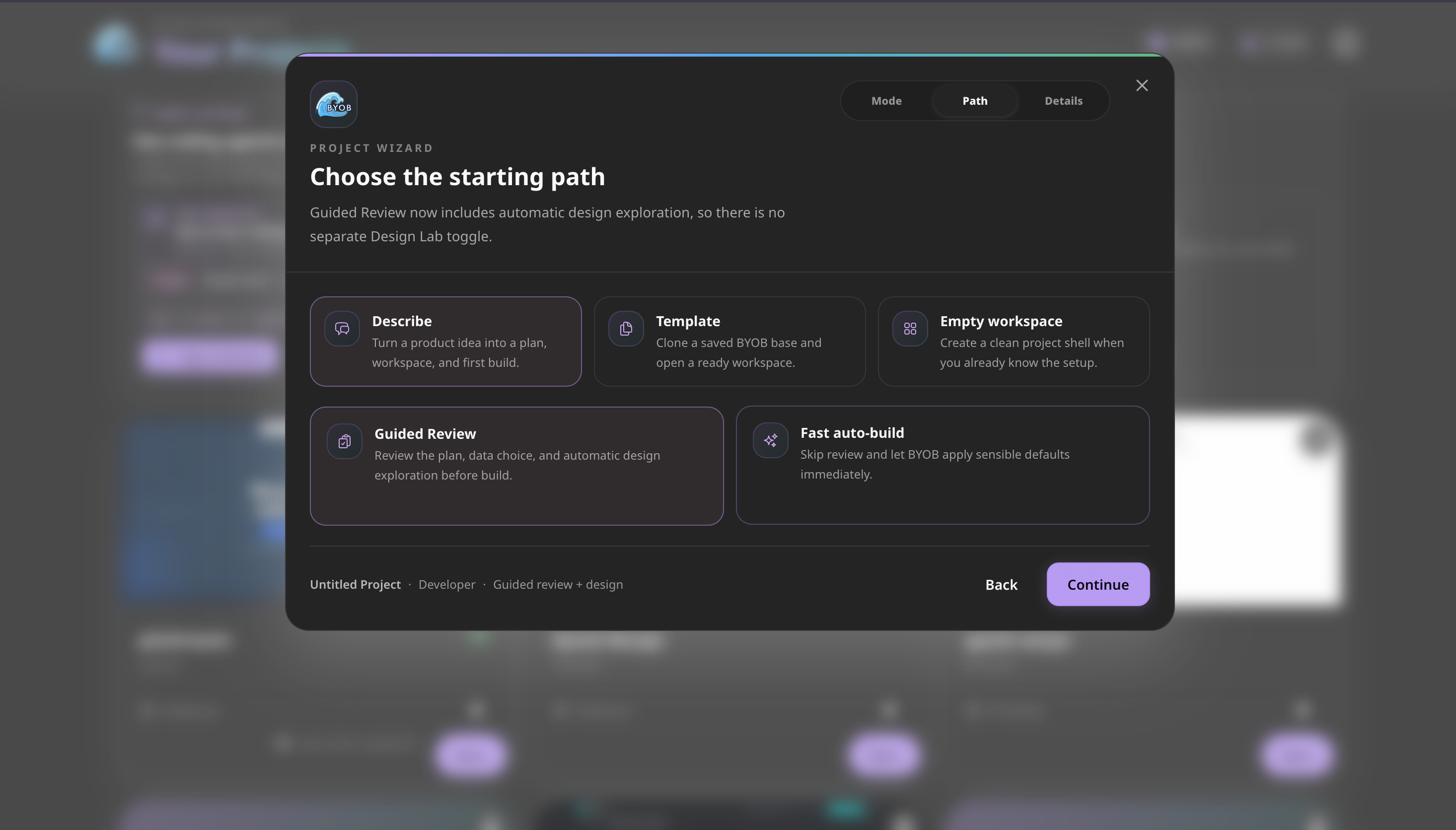
When you create a new project, you'll be greeted by the Project Wizard. Here, you select your starting path.
To use Preflight Planning, select the Guided Review option. This path includes automatic design exploration and a step-by-step review process.
Next, you will Add project details. Describe your app idea in plain English (e.g., "Create a landing page for an Indian restaurant"). Once you submit, the AI will enter the planning phase, refining your idea and shaping the architecture.
The Guided Review Steps #
Once the AI finishes planning, you will walk through the Guided Review modal. This is where structural and design outputs get displayed for your approval.
1. Refined Prompt & Features #
The AI first breaks down your initial prompt into a refined set of actionable features. This ensures nothing was misunderstood from your original request.
2. Look & Feel #
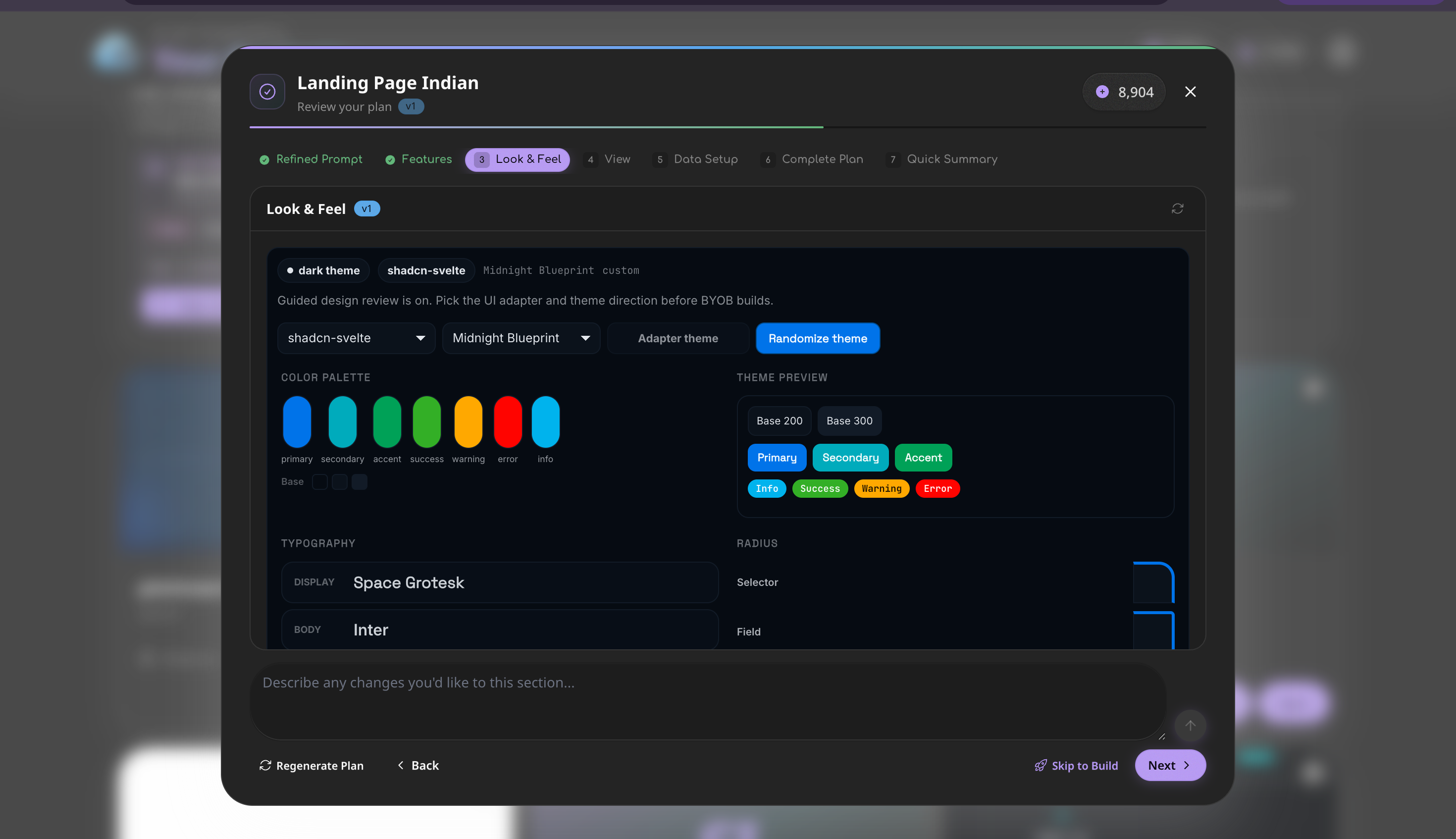
This step allows you to define the exact visual identity of your application before it is built.
- UI Adapter & Theme: Choose your component library (like
shadcn-svelte) and a foundational theme direction (e.g., Midnight Blueprint). - Color Palette: Customize your Primary, Secondary, Accent, Success, Warning, Error, and Info colors.
- Typography: Select specific fonts for your Display headings (e.g., Space Grotesk) and Body text (e.g., Inter).
- Randomize: Not sure what looks good? Hit the Randomize theme button to let the AI suggest a cohesive aesthetic.
3. View & Data Setup #
After confirming the frontend views, you will configure your backend.
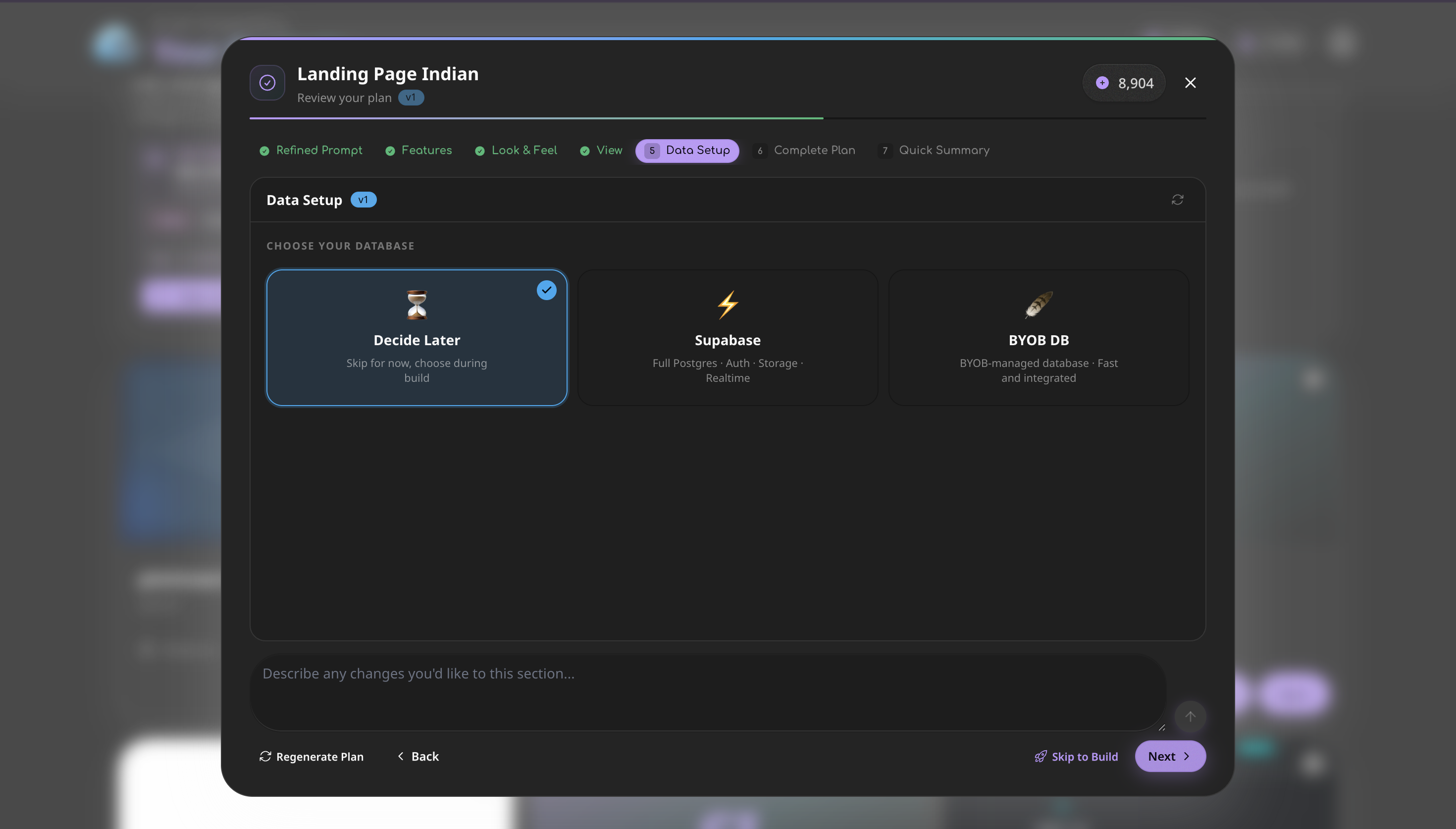
- Database Selection: Choose your database provider directly from the wizard. You can select BYOB DB (our fast, integrated managed database), Supabase (for full Postgres, Auth, and Storage), or simply select Decide Later if you want to skip it for now.
4. Complete Plan & Summary #
Finally, the AI presents the complete architectural blueprint. You'll see exactly which components, routes, and database tables it plans to create.
Iterating on the Plan #
At any point during the Guided Review, you are not locked into the AI's suggestions.
At the bottom of the modal, there is a chat input field where you can describe any changes you'd like to make to the current section. Simply type your feedback (e.g., "Make the primary color a vibrant orange instead") and hit Regenerate Plan. The AI will instantly adjust its output based on your feedback.
Once you are satisfied with all steps, click Next and skip to the build!